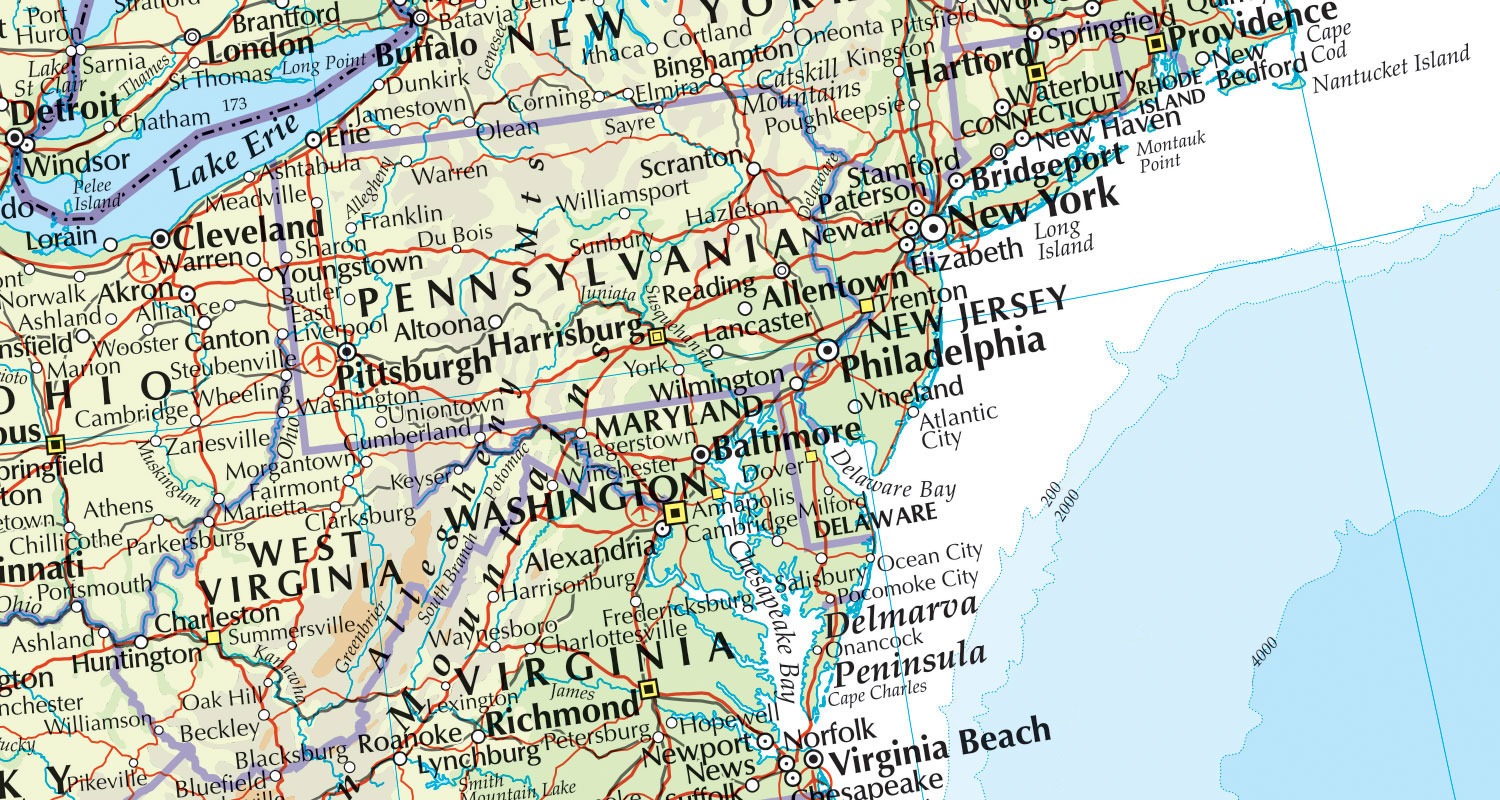
Collins Indicate is an easy-to-use online tool for the search, manipulation and creation of visual graphics from statistics. The tool allows the import, creation, display and export of statistical information down to subnational level.

Import your own data or draw from an easy-to-search authoritative bank of statistics - we are constantly adding to the data we have available.

pdf icon Download our user guide

Worldwide Mapping

Worldwide Mapping

Generate in seconds customisable world, regional, multiple-view maps. Adapt the intervals, change the colour palettes, pan, zoom and scroll to create the view from which you can best illustrate or analyse your chosen topic. The zoom function allows maps to be drilled down to subnational level and further subnational detail is available for customers on request.

  1. The Indicator dropdown menu provides a dropdown list of all available indicators.
  2. The Year dropdown menu provides a dropdown list of the years available for the selected indicator.
  3. Alter the number of intervals displayed, the map colour schemes and the analysis methods used.
  4. The legend displays the intervals selected for the currently selected indicator.
  5. Use the locator map to zoom in and out of the world map and to quickly navigate round the map.

Worldwide Mapping


Timeline Graph

Timeline Graph

By clicking on a country, it is automatically added to the graphical timeline in the bottom left of the screen. This gives a clear indication of trends over time. Up to 5 countries can be compared at any one time.

  1. Compare individual countries with average world figures.
  2. Data trends shown for up to 5 countries.
  3. Countries can be removed from the list by clicking on the close symbol.
  4. The y-axis can be toggled to use a logarithmic axis.
  5. Play the timeline to view an animation of the maps reflecting data changes over time.
  6. Use the sliders to alter years viewed.

Timeline


Selected Area

Selected Area

Build up a list of areas of your choice and compare statistics between those areas and the rest of the world.

  1. Data can be shown for up to 5 countries.
  2. Compare individual countries with average world figures.
  3. Any related indicators are shown as a hyperlink.
  4. Clicking on the country name will pop up information about the country.

Selected Area


Ranking Tables

Ranking Tables

The ranking table displays the countries of the world in ranking order for the selected indicator. Clicking on Rank will toggle the ranking order between ascending and descending. Clicking on Country will toggle country name between ascending and descending alphabetical order. Clicking on Data will toggle between ascending and descending order for the data values. Mousing over the bar will display the value for each bar.

  1. The bar graph tab will display the ranking table with bars to display the relative values for the selected indicator for each country.
  2. The pie chart tab will display a pie chart for the selected indicator, if data is suitable.

Ranking Tables


Area Comparisons

Comparative Mode

Choose Comparative Mode to see two maps and view two indicators at the same time. Compare the same statistic over time or compare two completely different indicators.

  1. Example shows comparison of related indicators for 2005.
  2. Using the Indicator dropdown menu, you could choose a different indicator to compare in the second window.
  3. Using the Year dropdown menu, you could choose a different year to compare in the second window.

Comparative Mode


Easy Navigation

Easy Navigation

A series of dropdown menus provide easy access into the functionality of the application. An advanced search facility allows you to enter key words to help you select the correct indicator.

  1. The Indicator dropdown menu allows the easy selection of indicators.
  2. Other dropdowns allow you to choose your year of interest, map display options, including colours, number of intervals shown, and the analysis method used.
  3. The easy-to-use search facility provides another way of finding an indicator of interest.

Easy Navigation


Import Your Statistics

Import Your Statistics

You can easily upload your own statistics into the application and save these for future use utilising Collins Indicate's import tool. The user-imported set can then draw on the functionality of the application and/or be compared to the bank of statistics drawn from the application itself.

  1. Application allows you to add metadata to your imported data.
  2. Add your data to a specific category or create your own.
  3. Specify the units for your data.
  4. Specify whether the data is suitable to be displayed as a pie chart.
  5. Easily find and administer all your data from the MyData tab on the menu bar.
   
   
Export Data

Export and Share Graphics

Collins Indicate's Export tool allows the user to very simply export the created graphics or the raw data out of the application into their chosen format. The graphics can be extracted as components or the full page as a JPG, PDF or PNG file. The raw data can be exported as CSV, Excel, KML or XML documents. Graphics and created analysis can also be shared online with others using the bookmark/share link functions.

  1. Once you have finished your analysis, you can export the data into the following formats: JPG, PDF, PNG, CSV, Excel, KML, XML.
  2. Save a particular view and share it with a colleague.
  3. Bookmark or save a view to look at it again later.
  4. Retrieve and administer your bookmarks from the bookmark menu tab.

Export